The Secure Messaging App for Desktop That Puts Your Organization in Control of Its Own Communication
xPal, after its desktop launch, is a privacy-first team communication platform and secure messaging app for desktop for businesses and teams that are moving away from communication tied to personal identity.
It replaces personal-data-based accounts with a 9-digit xID®, creating a global communication identity across Windows, macOS, and the web.
There is no phone number or email address, no form to fill. Just a username, a PIN, and a number that works for cross-device messaging and calling anywhere in the world.
| The queries for a secure messaging app for desktop | The answer |
|---|---|
| Do employees need personal phone numbers to sign up? | No |
| Can xPal run on both phone and desktop at the same time? | Yes |
| Does the company control who has an account? | Yes |
| Are conversations kept on xPal servers after delivery? | No |
| Does it work between countries without codes or settings? | Yes |
| Can an account be switched off when someone leaves the team? | Yes |
| Is file sharing encrypted the same way messages are? | Yes |
| Is the security weaker on the free plan than on the paid one? | No |
| Can messages be set to delete themselves after being read? | Yes |
| Is there a dashboard to manage the whole team's accounts? | Yes |
How does a team actually get started in the xPal secure messaging app for desktop?
The first thing to understand about the xPal secure messaging app for desktop in the context of organizational and secure team communication is the xID®. Every person on the platform has one, a unique 9-digit number that is their entire identity on xPal. Without any personal factor attached, it is simply a number that lets one person reach another, anywhere in the world, without needing to know anything else about them.
For secure team communication, this means the organization acquires xIDs for its members. Those numbers belong to the company. An employee uses their assigned xID while they are part of the team. When they move on, the xID is closed.
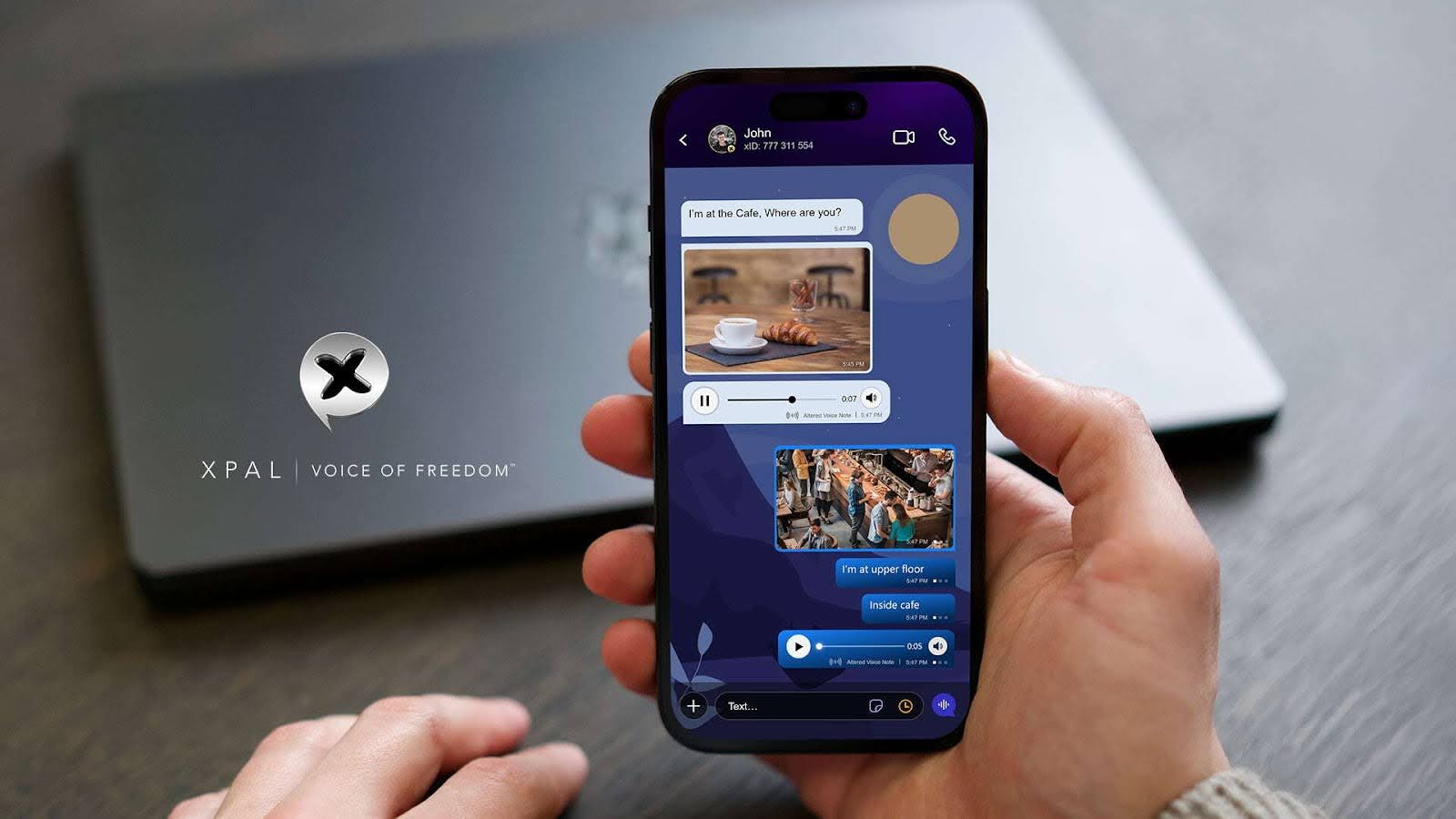
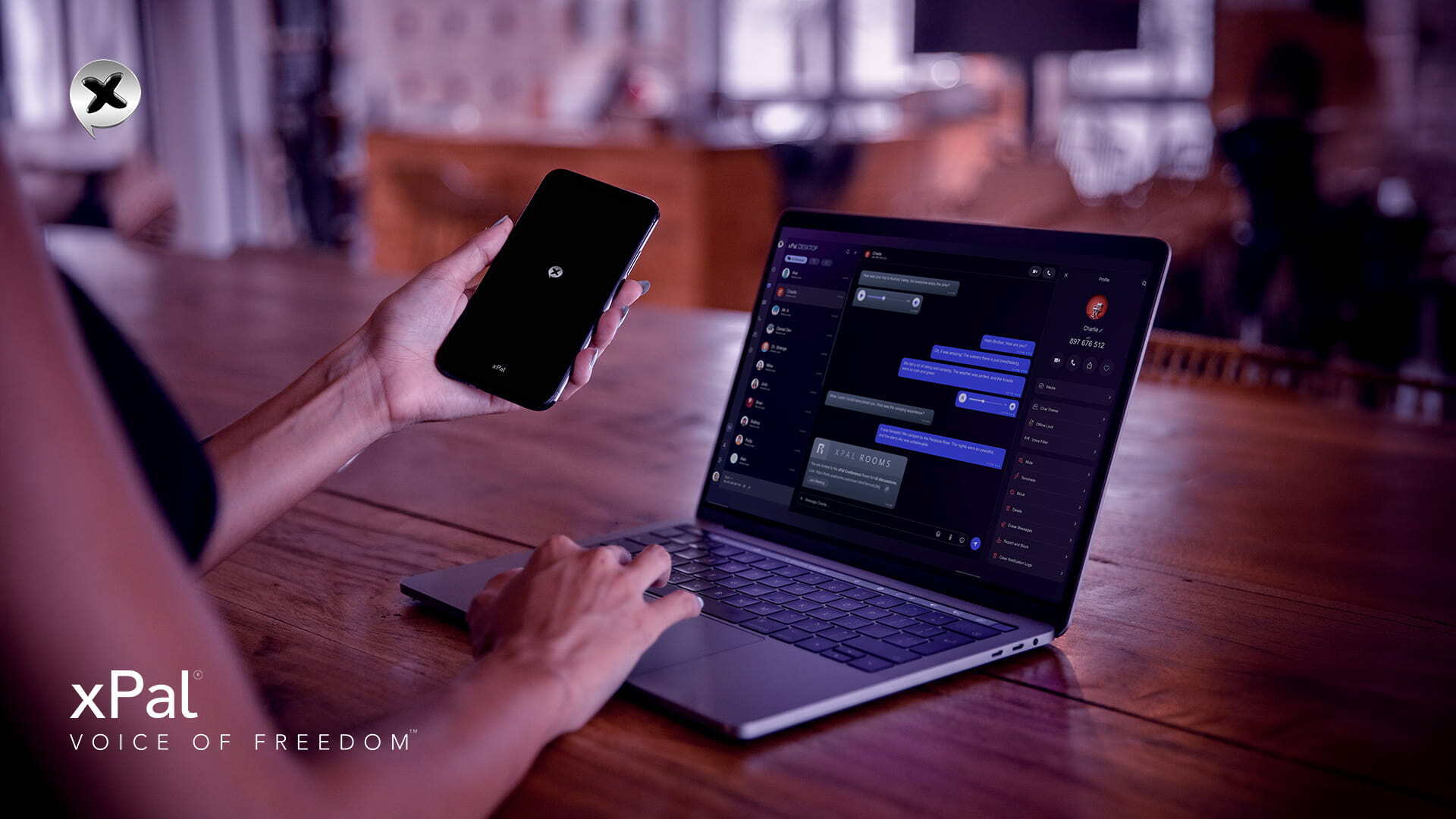
Setting someone up takes a few minutes. They receive their xID, choose a PIN, and they are ready. To get onto the desktop, they open the xPal desktop app on their computer, see a QR code on screen, scan it with their phone, and both devices are linked in real-time and immediately. From that moment, their phone and their computer are one continuous experience. Whatever comes appears on whichever screen they are looking at.
There is no IT department required to configure this cross-device messaging, no software to install beyond the app itself, and no admin approval needed for each pairing. The QR code does the work, and the whole thing is running in under a minute.
What does the desktop change for secure team communication?
Before the xPal desktop app, xPal lived on the phone. That worked well for conversations on the move. What it could not do was sit comfortably in the professional environment where most of the focused, consequential work happens: the desk, the large screen, the keyboard, the cross-device messaging setup where people do their clearest thinking and their most detailed communication.
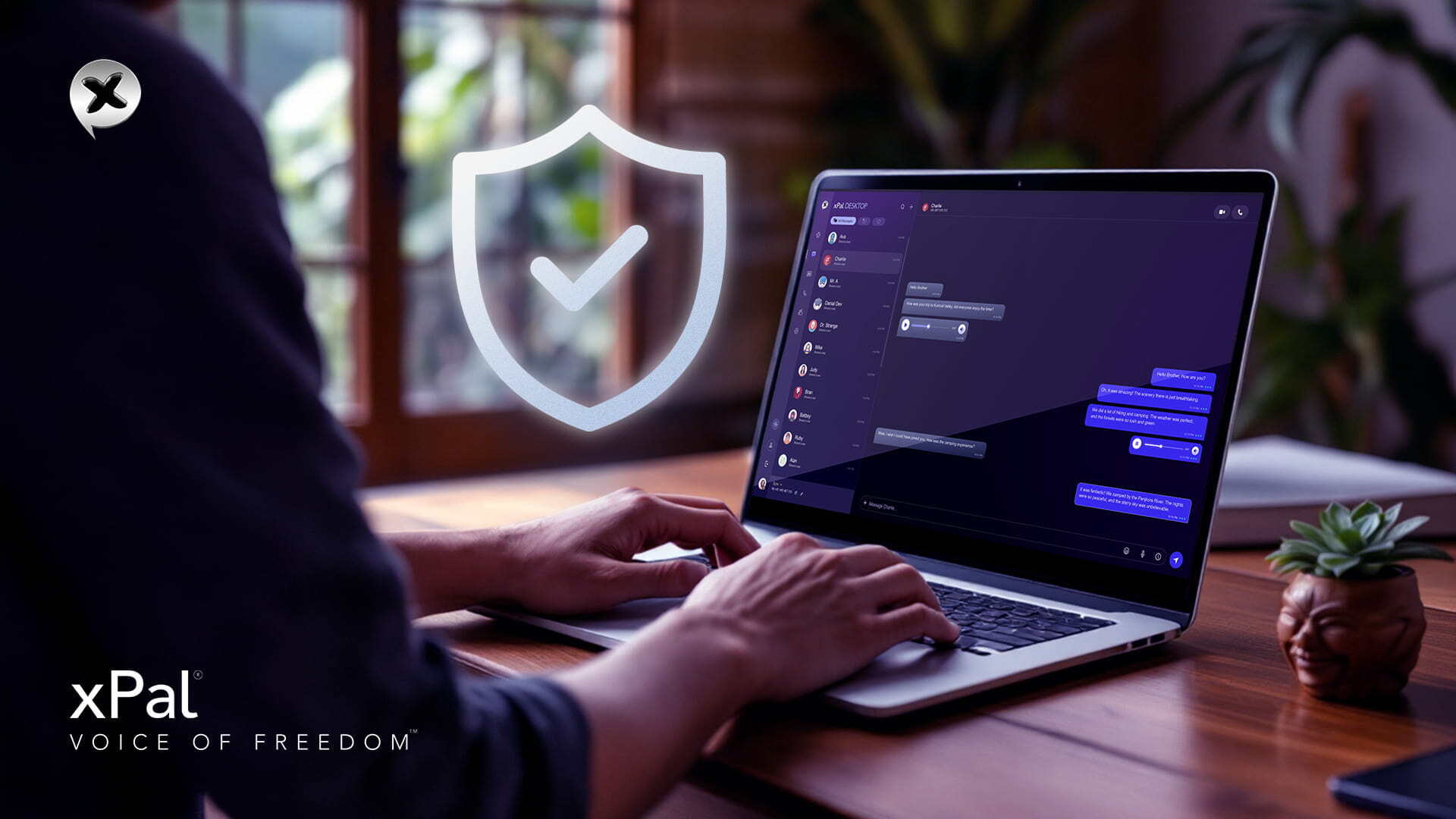
xPal secure messaging app for desktop changes that. A full keyboard for longer messages. A screen large enough to read documents and have a conversation at the same time. A video call where you are not propping your phone against something and hoping the angle holds. Group threads are easier to navigate and manage when you can see more of the conversation at once.
The cross-device messaging between phone and desktop runs live over an encrypted connection. Start a message on your phone as you walk into the office. Continue it at your desk without having to find where you left off because it is already there. Step out for a meeting, and it follows you back to your phone. The conversation, secure file sharing, texting, and all do not care which device you are on. It just continues.
xPal Desktop Features: What they are and How Teams use them?
xPal secure messaging app for desktop does not introduce separate features. It is a screen-optimized version of the same xPal system, and all functionality continues seamlessly from the mobile app.
Flicker™ Mode
Every organization has conversations that are relevant in the moment, and nobody needs to keep forever, like a quick decision, a number shared before it is finalized, or a note passed between two people that served its purpose the second it was read.
Flicker™ Mode lets the sender put a timer on any message, anywhere from 30 seconds to 24 hours. Once the recipient reads it, the countdown begins. When it reaches zero, the message is gone from both sides without being archived somewhere or softly removed with a recovery option sitting behind it. It is completely gone.
This is exactly the kind of secure team communication needed. Sensitive client details shared or feedback that was meant to be direct and private. Additionally, instructions given during a time-sensitive situation that do not need to exist in a thread six months later.
Importantly, the person receiving the message still reads it fully. The timer simply means the conversation has a natural end, chosen by the sender, that happens automatically.
Terminate™ Mode
When a working relationship ends, such as a project, a contract closes, or a consultant moves on, the conversation that happened during that time does not always need to remain accessible on both ends indefinitely.
Terminate™ closes a conversation completely. It removes the entire thread from the sender's and recipient's devices simultaneously. Everything sent. Everything received. The replies, the secure file sharing, and the whole history are gone from both sides at once.
It also removes the sender's xID from the recipient's contact list and closes future communication through that channel.
In the xPal privacy-first team communication platform, this is a clean way to end external relationships from both sides, with no residual access to the conversation history from either end.
Total Wipeout™
This is the feature that requires no scenario-building to explain. Every organization has moments where the only right move is to clear everything immediately.
Total Wipeout™ does that in one step. Enter the PIN in reverse. If the PIN is 4821, type 1284, and every message, every call log, every piece of media shared across every conversation on the platform disappears instantly. From the user's device and from every recipient's device simultaneously. Contacts go hidden until the correct PIN is re-entered.
There is no confirmation prompt, no undo, because the decision is made once and it executes completely.
For teams operating in environments where security matters beyond the ordinary, this feature is a game-changer for a secure messaging app for desktop.
Photo & Video Sanitizer™
A photograph taken on a modern smartphone conveys more than what is visible. It carries the exact GPS location where it was taken, the time and date, the device model, and sometimes additional information embedded in the file that the sender never intended to share.
xPal's Photo & Video Sanitizer™ removes all of that automatically before the file is sent. This is secure file sharing because the recipient receives the image. They do not receive a record of where it was taken or when. The sender does not have to think about it or take any additional steps. It happens as part of the sending process.
For secure file sharing across a team, this is the kind of detail that matters over time.
Documents, PDFs, Word files, spreadsheets, and presentations are shared through the same end-to-end encrypted channel as messages. The sender decides whether the recipient can download the file or can only view it within the app. That permission stays with the sender.
Remote Wipeout™
Devices get lost. It is one of those workplace realities that no policy fully prevents, for instance, a laptop left somewhere, a phone that goes missing during travel, or simply a device that ends up somewhere it should not be.
Remote Wipeout™ means the organization does not have to rely on the device's built-in security to protect what is on it. Once activated in settings, xPal checks for a network connection every time the app opens.
When a device goes missing, the team member logs into the xPal secure messaging app for desktop on another device and activates the remote wipe. The moment the missing device connects to any network, all xPal data on it is deleted. There is no need to be physically present.
Groups
Most of the communication inside an organization happens in groups. Project teams, departments or cross-functional conversations that do not fit neatly into one-to-one threads.
xPal groups support up to 50 members on the free plan and 100 on Gold. A group is created in a few taps; name it, add members from the organization's contact list, and the thread is live. Every message in the group is encrypted the same way a private conversation is. There is no difference in protection because more people are in the room.
One detail worth knowing about the xPal privacy-first team communication platform: within a group, a member's xID is visible only to people who have mutually added each other as contacts. Everyone else sees a screen name. For organizations that include external participants in a group, such as a client, a partner, or a supplier, internal xIDs are not visible to them by default. Privacy within a shared space is also taken care of.
Besides, group notes are available directly within the thread, which is a space to capture decisions, action points, or context that the group needs to keep without it getting buried in the message flow.
Managing a Team on the xPal secure messaging app for desktop
xPal Business is the organizational layer that sits above all of this. It is a dashboard for purchasing or using xIDs in bulk, assigning them to team members, and managing them centrally as the team grows and changes.
A new person joins and is assigned an xID from the dashboard. Someone leaves, terminates it from the same place simply. The organization maintains a clear view of who holds an active account and can act on changes immediately without going through any third-party process.
The secure team communication structure that this creates is one where accounts are assets of the organization. The content of conversations remains entirely private; nobody at xPal, no administrator, and nobody outside the conversation can read what is said. But the existence and status of accounts are fully within organizational control.
Who Benefits Most from the xPal secure messaging app for desktop
xPal, as a secure messaging app for desktop and mobile, is genuinely useful to a wide range of organizations:
- Teams that work across countries and need cross-device messaging that does not require international setup.
- Organizations that handle sensitive client relationships and want communication that does not leave a permanent trail on servers outside their control.
- Businesses that want to separate their internal communication from employees' personal devices and personal numbers.
- Any team that values the kind of clarity and control that comes from knowing exactly how their communication is structured and who has access to it.
The desktop app makes xPal a full professional and privacy-first team communication platform. A space that was designed to work the way professional communication actually works, across every screen, in every environment, for every kind of team that takes what it does seriously.
What matters most is that xPal does not collect data on the people using it. No employee profile is built from their usage. No communication pattern is analysed in its secure messaging app for desktop.
For organizations that have thought carefully about what privacy-first team communication platforms they bring into their workplace and what those tools do with the information they encounter, that is worth knowing.
xPal is available now on desktop at xpal.com. Setting up a team starts with an xID and takes as little time as it should.
FAQs
- Can we give each department its own group without members seeing each other's contact details in xPal?
Yes, secure team communication is fully considered. xPal's contact visibility works on mutual connection; a member's xID only shows to people who have added each other as contacts. Someone in finance and someone in operations can be in the same group without either seeing the other's xID unless they have personally connected. - Does xPal Desktop change how the system works?
No. xPal Desktop does not introduce a separate system. It extends the same xPal experience to desktop environments with a layout optimized for larger screens and cross-device messaging. - Can two employees share one xID, for example, a shared client-facing account?
An xID can only be active on one device at a time. For shared account needs, xPal Business allows organizations to purchase and manage additional xIDs, so a shared role can have its own dedicated xID rather than routing through a personal one. - Is there a way to see if a message was read?
Yes. xPal shows read receipts within conversations so the sender knows when a message has been seen. For Flicker™ messages, the timer begins the moment the message is read. - Can xPal be used for client communication, not just internal teams?
Yes. Any two xIDs can communicate with internal team members and external clients alike. A client simply registers for their own xID, which takes under a minute, and communication can begin. Their registration requires no personal information either. - If an employee uses xPal on a personal phone, does the company have access to their personal data on that device?
No. xPal does not access the device's contacts, storage, or any data outside the app itself. The organization manages xIDs through xPal Business; it has no reach into the personal device the app runs on. - How does xPal handle a team spread across multiple countries?
The xID system has no geographical limitations. There are no country codes, no regional settings, no separate versions of the app for different markets. A team in five countries communicates through the same platform with the same experience on every end. International calling and messaging work identically to domestic. - Can we set different permission levels for different team members?
Currently, group admins have management control within their groups, adding members, removing them, and managing the thread for secure team communication. The xPal Business dashboard gives organizational administrators control over xID assignment and termination at the account level. Granular role-based permissions within conversations are part of the platform's ongoing development. - What is the maximum file size xPal supports for document sharing?
For practical workplace use, the xPal secure messaging app for desktop supports PDFs, Word documents, Excel files, and PowerPoint files through its encrypted sharing channel. Media files, photos, and videos are supported with the option to send in compressed or HD uncompressed format on Gold accounts. For specific file size limits, the support team at xID 123 456 789 can advise based on current platform specifications. - Is there a minimum team size to make the xPal secure messaging app for desktop worthwhile for an organization?
No. A two-person partnership benefits from the same encryption and privacy structure as a hundred-person firm. The free plan covers unlimited encrypted messaging and audio calls for any size of team. The Gold plan and xPal Business dashboard become more relevant as team size grows and account management becomes a practical need, but the platform works from day one regardless of how many people are on it.